Sync Google Play Store
Linking your Google Play Console account lets ProdRail ingest full review history, ratings breakdowns, device metadata, and lets you reply to reviews.
This guide has two parts:
- Create the connection and permissions in Google Cloud and Google Play Console.
- Upload the JSON key in ProdRail and connect your android app.
Important: You need to be the Google Play Console account owner to complete this guide.
Security and account control
- You can revoke any service account created for ProdRail anytime in Google Play Console.
- You can delete or rotate the JSON key in Google Cloud without impacting your main login.
- ProdRail uses these credentials only to sync review and ratings data.
Setting Up A New Google Play Console Connection
1. Log in to the Google Play Console
Open the Google Play Console and log in as the account owner. In another browser tab, open the Google Cloud Console.
2. Create a Google Cloud project
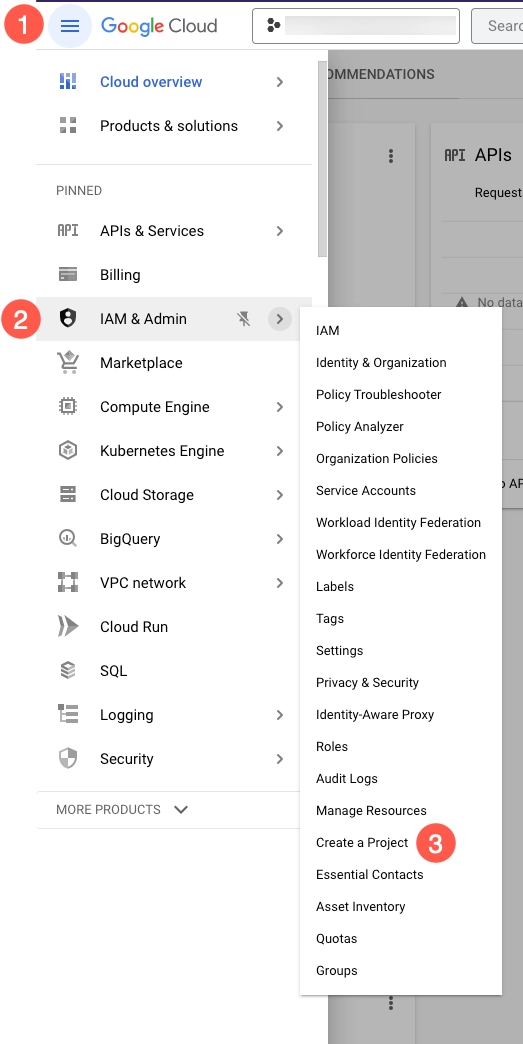
Select Menu > IAM & Admin > Create a Project.
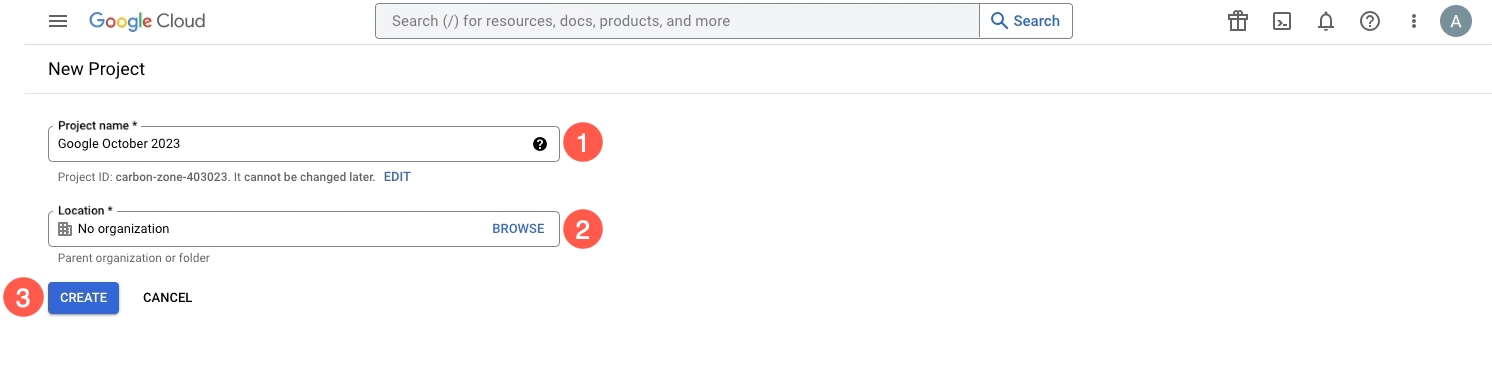
Enter the project name and organization (if required), then select Create.
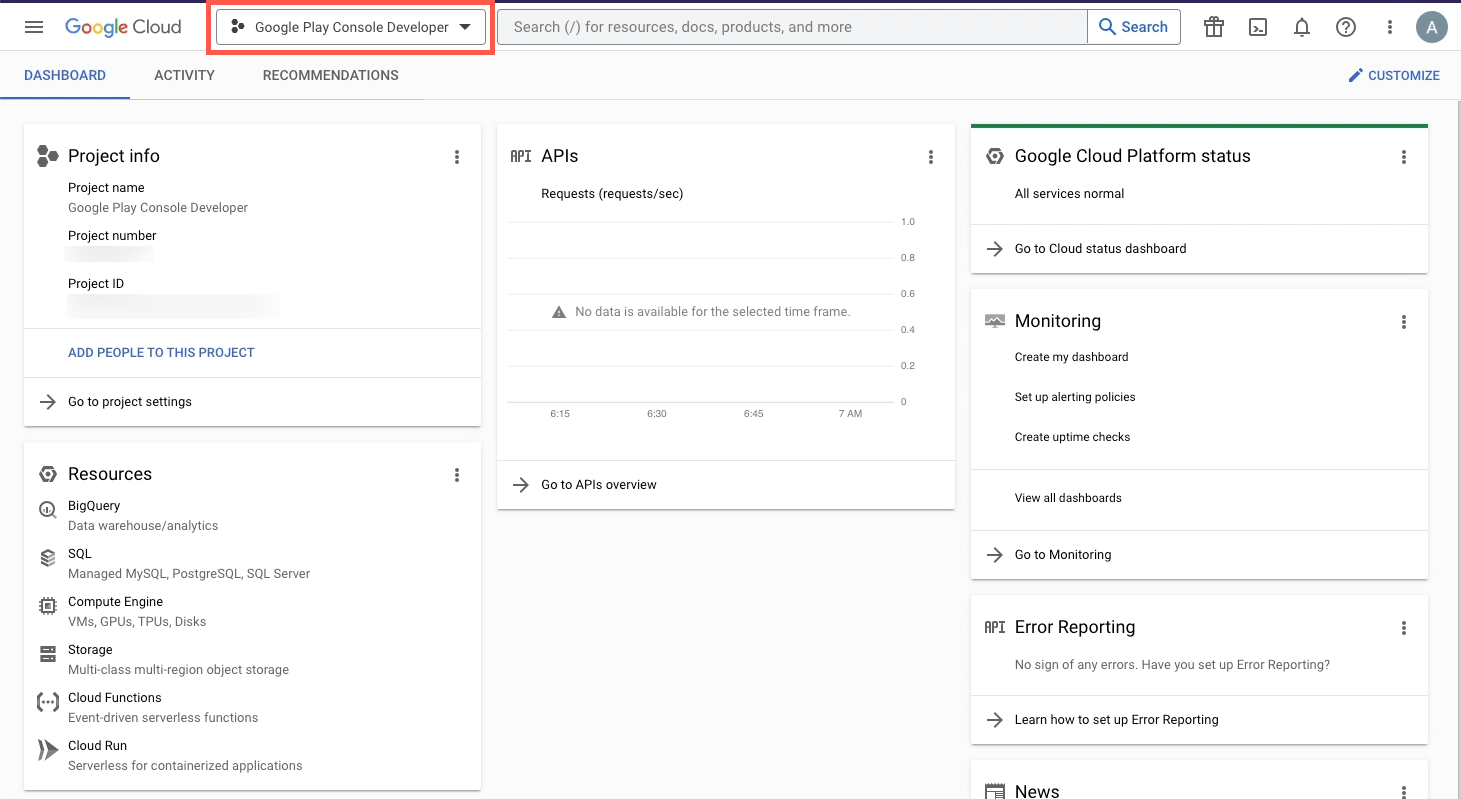
When the dashboard opens, confirm the correct project is selected at the top.
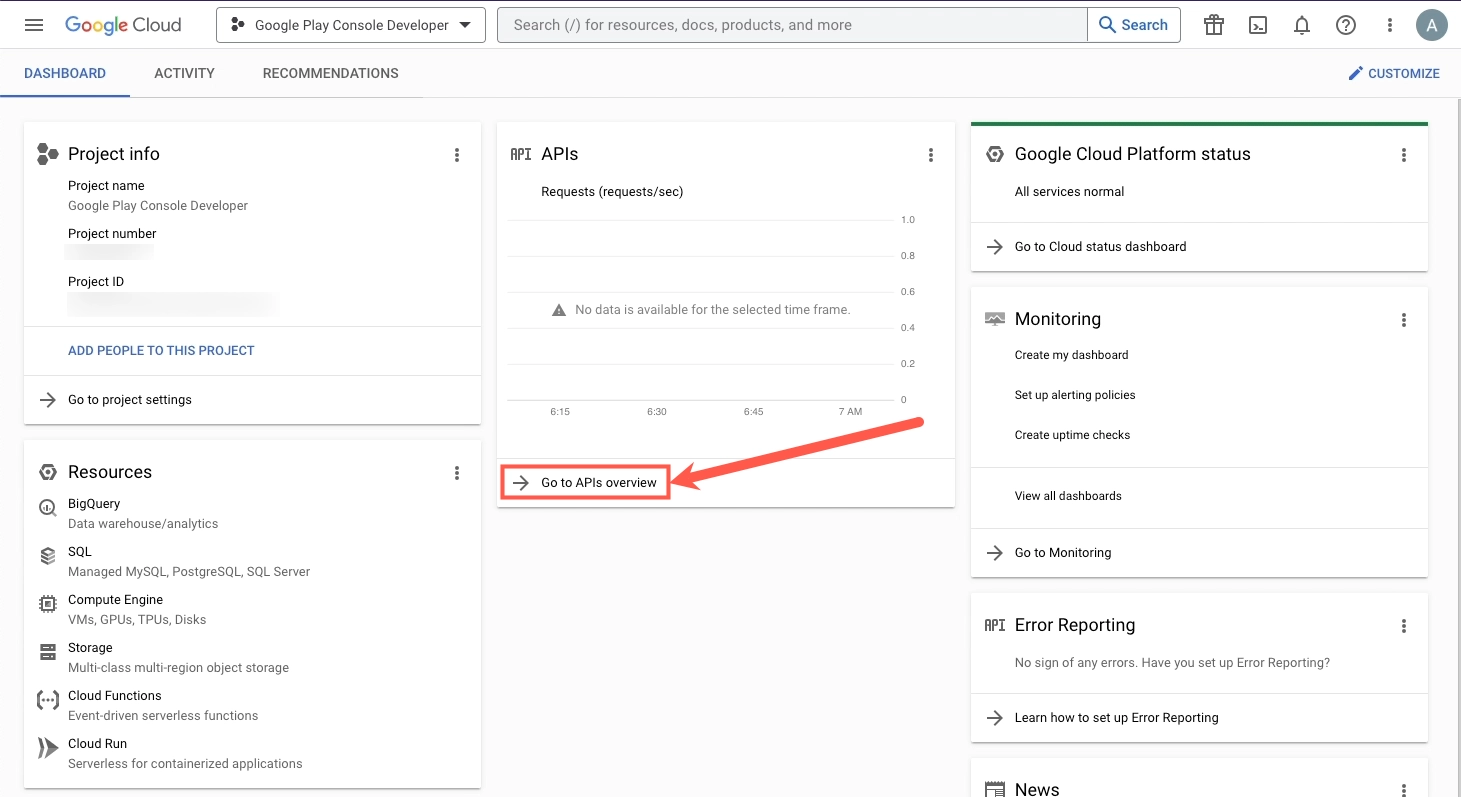
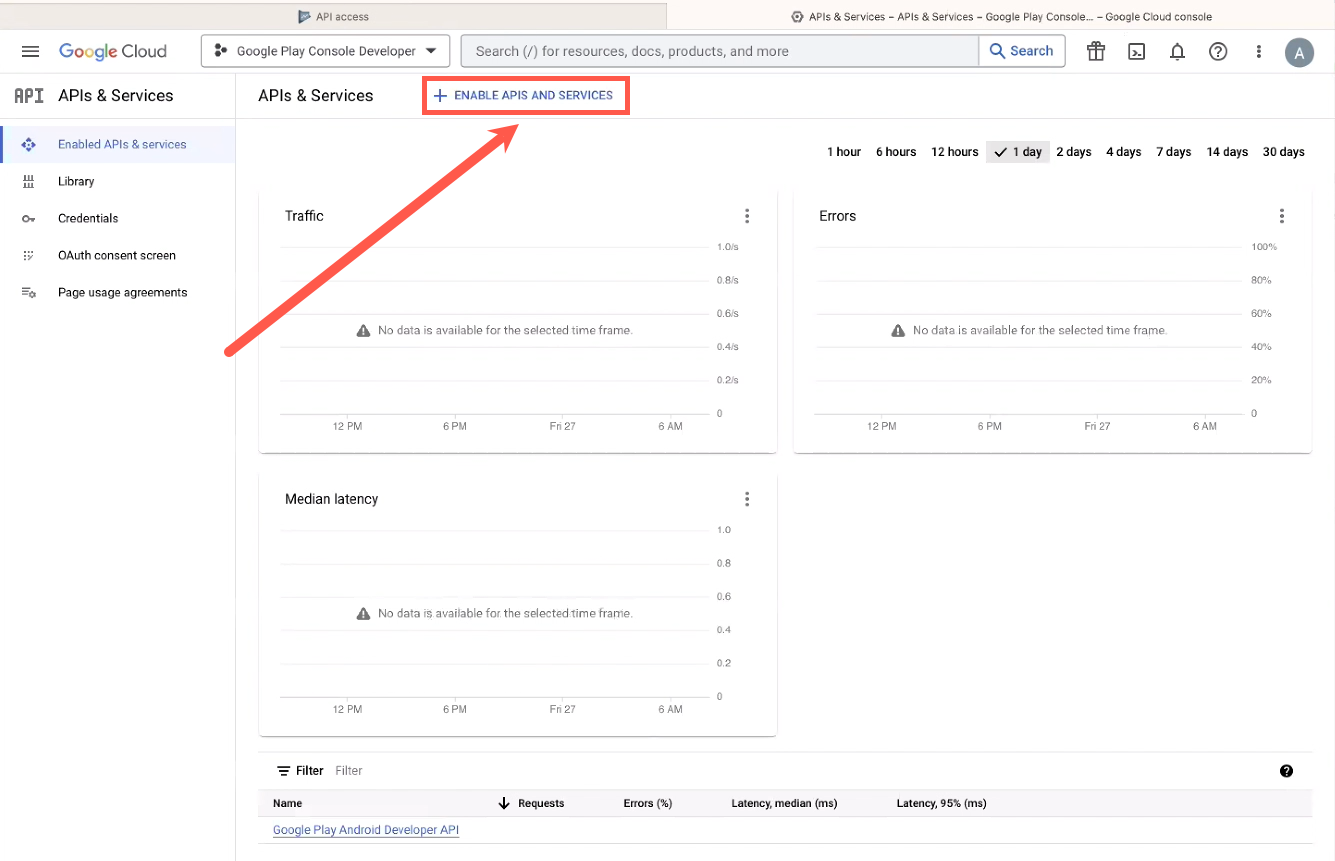
Select Go to APIs overview, then select + Enable APIs and Services.
3. Search for APIs in Google
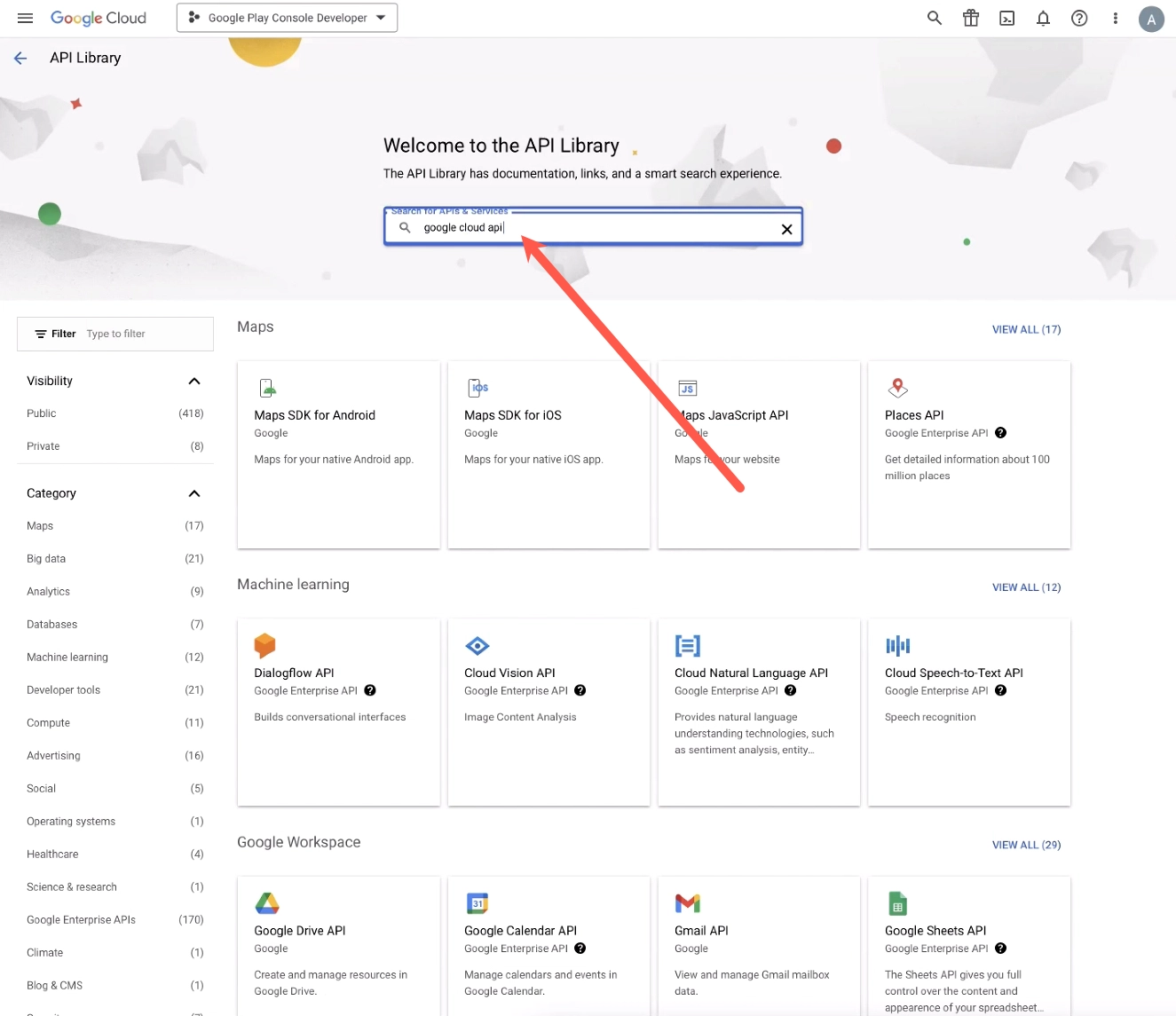
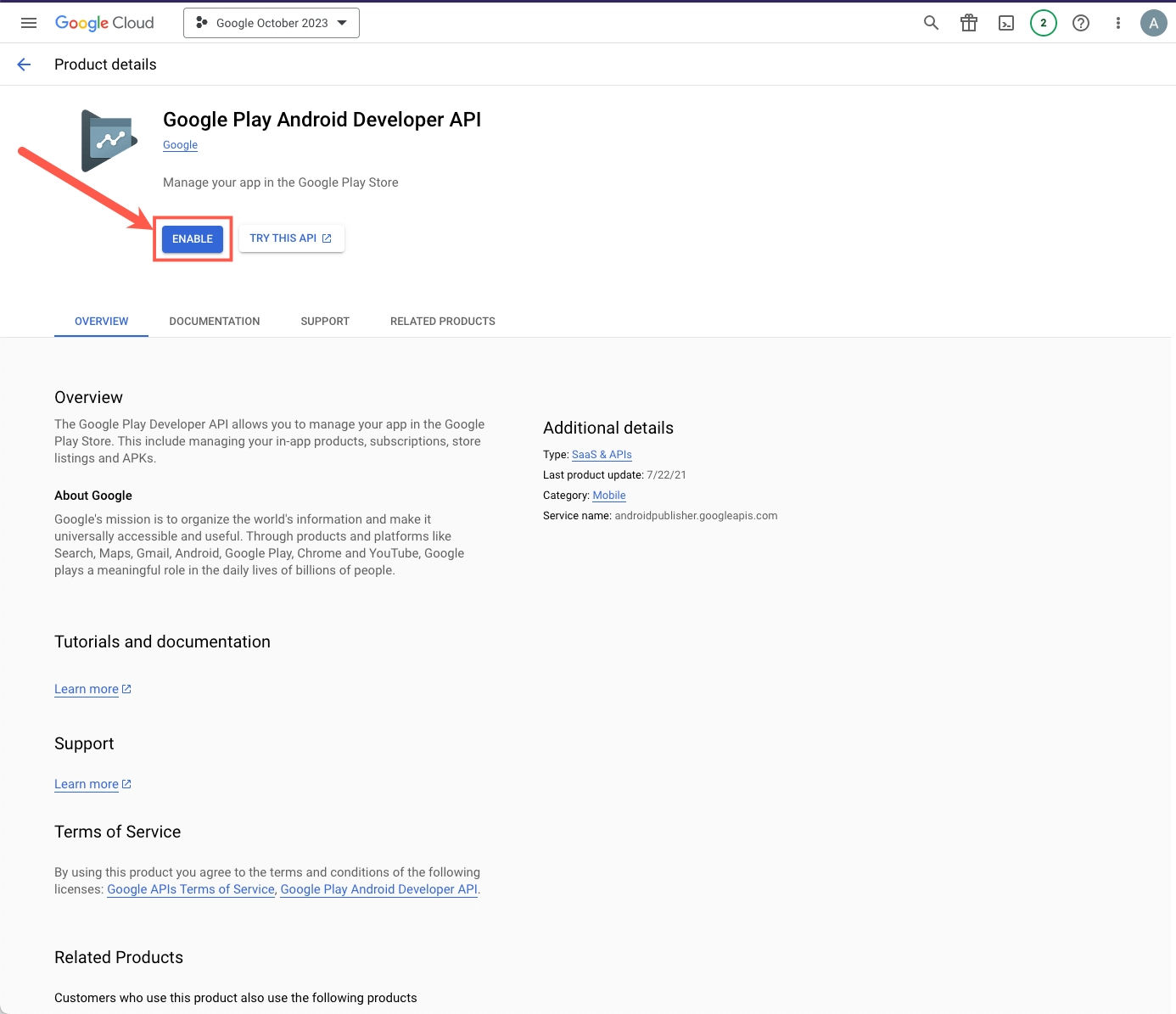
Search for the following APIs and make sure each one is enabled:
- Google Cloud APIs (lets us authenticate you)
- Cloud Storage (allows access to historical review data)
- Google Cloud Storage JSON API (also allows access to historical review data)
- Google Play Android Developer API (allows access to current review data)
4. Open Service Accounts in Google Cloud
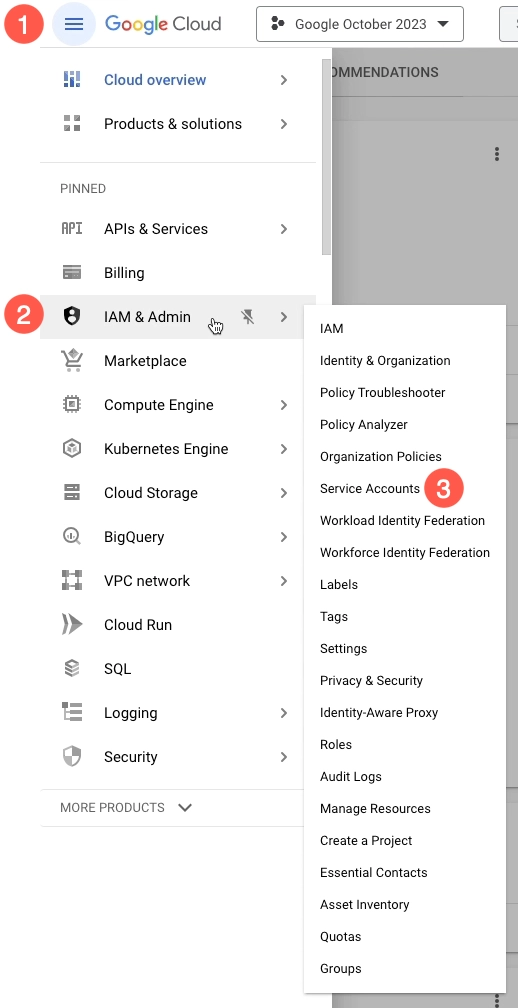
In Google Cloud, select Menu > IAM & Admin > Service Accounts.
5. Create service account in Google Cloud
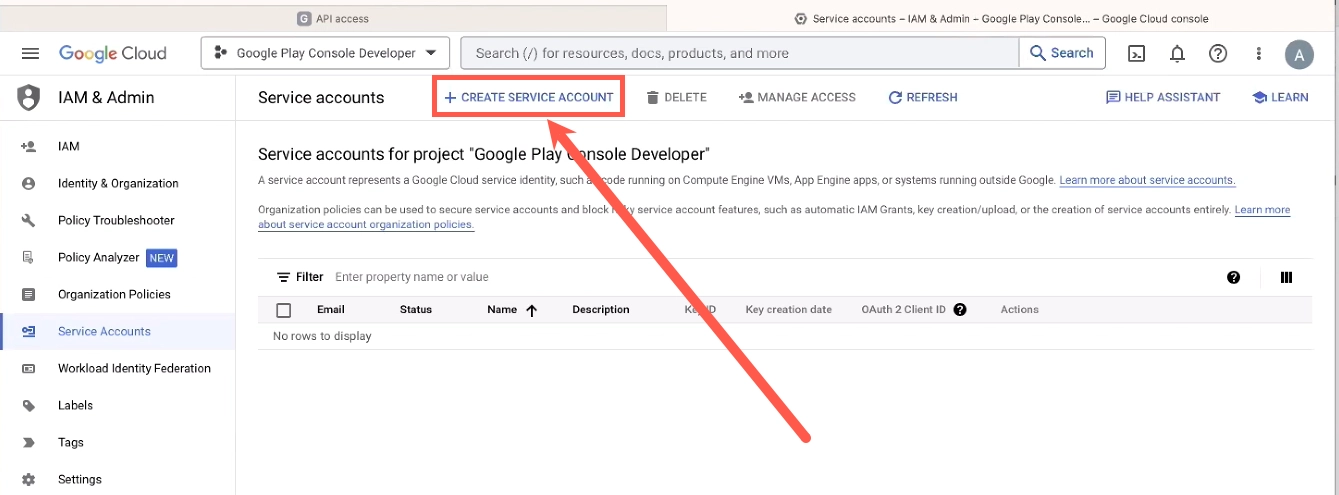
Select + Create Service Account.
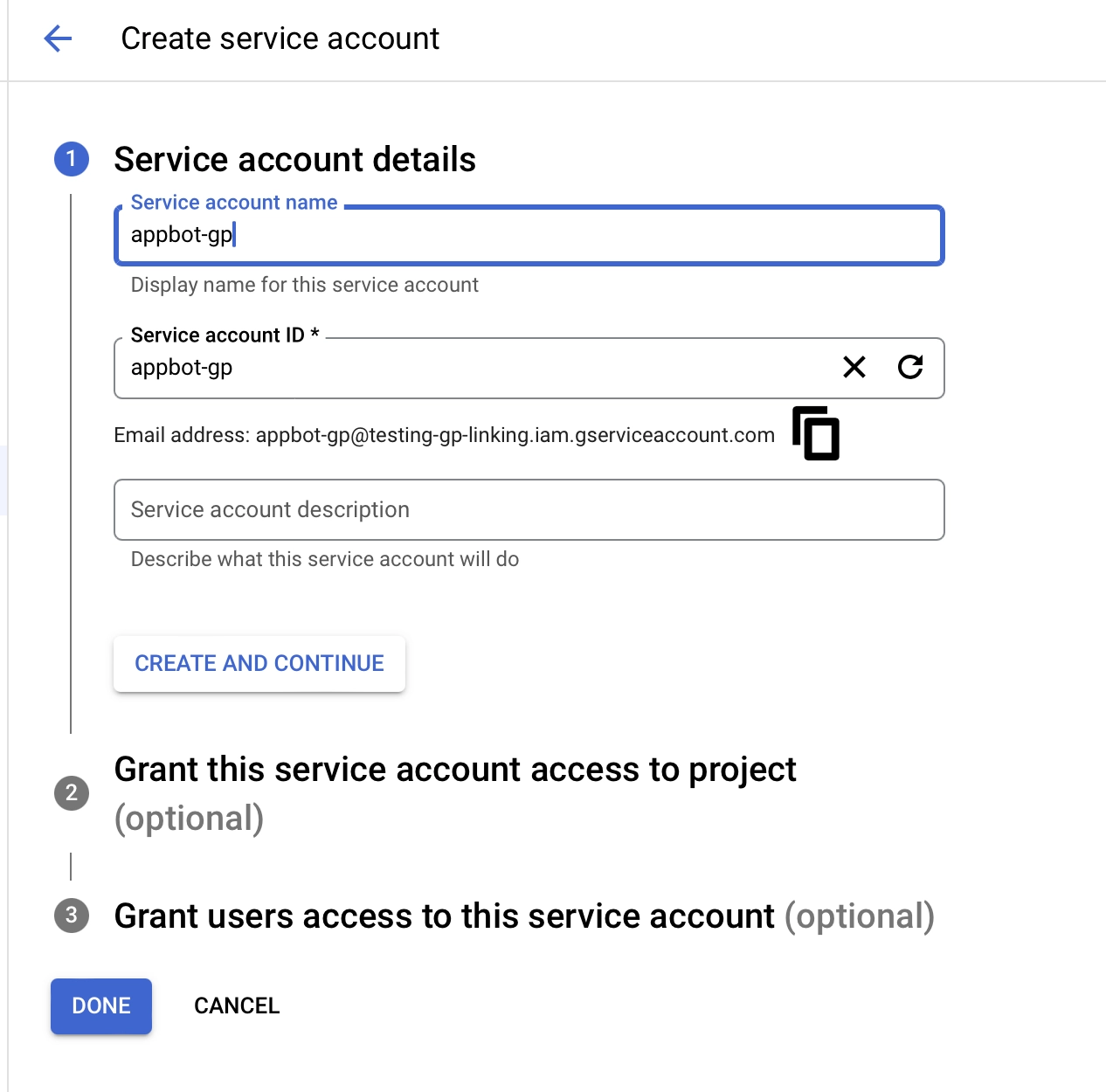
Give the service account a name (it can be anything, but naming it after ProdRail makes it easier to identify later), then select Create & Continue.
6. Service account roles for Google
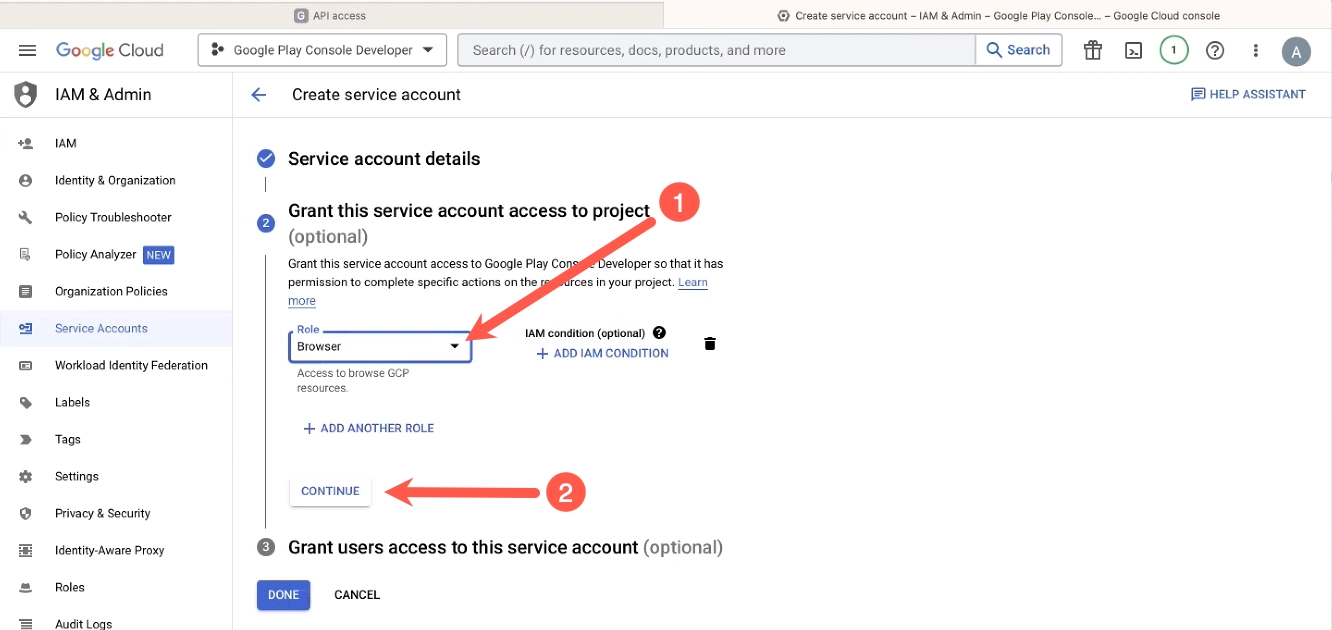
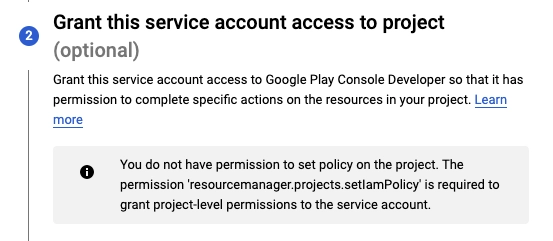
Under Select a role, choose Basic > Browser, then click Continue.
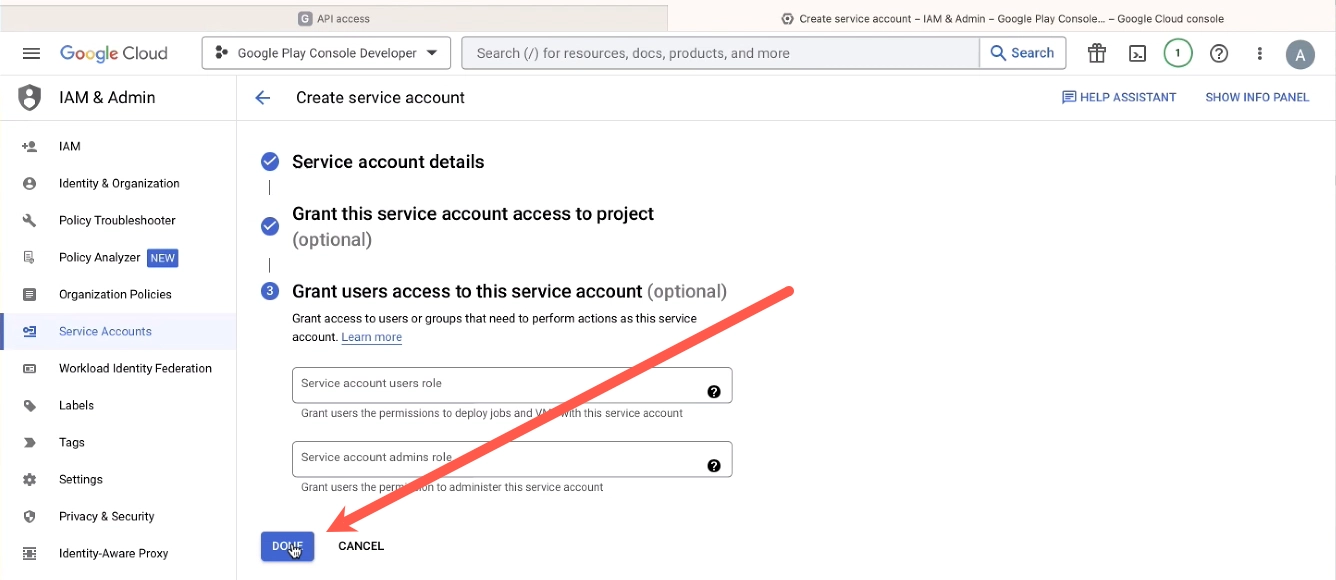
Select Done.
If you see an access error at this point, you are likely not logged in as the Play Console owner account.
7. Create key
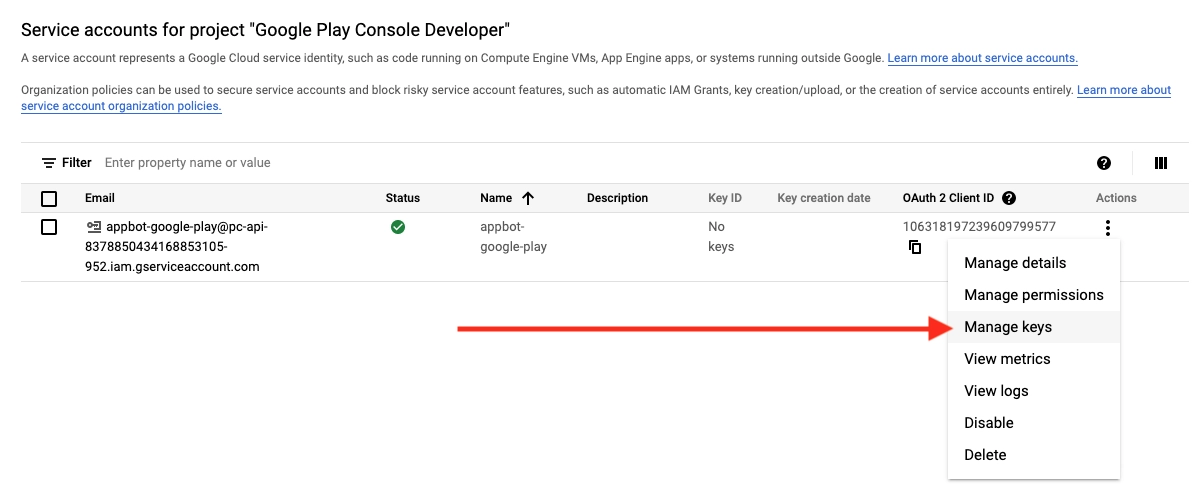
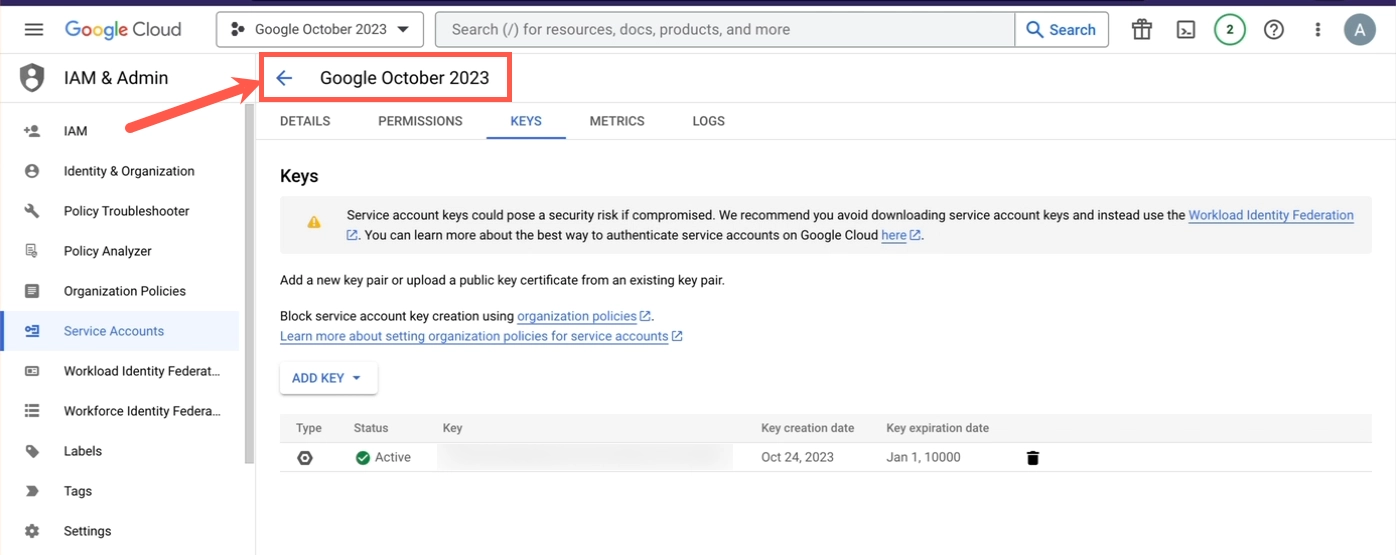
Open the three-dot menu for the service account and select Manage keys.
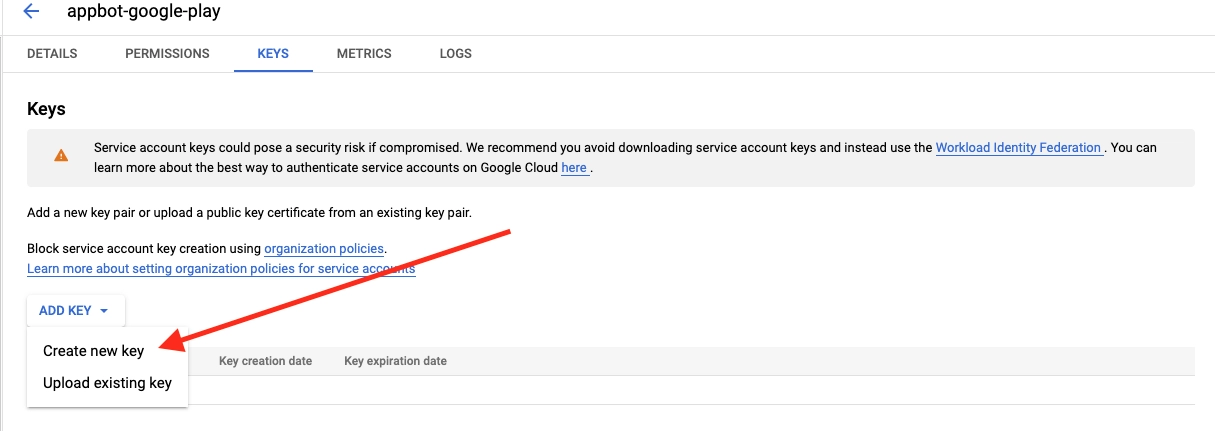
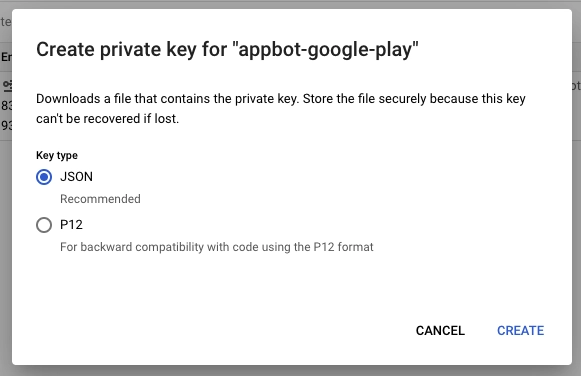
Select Add key > Create new key, choose JSON, then select Create.
8. Save key
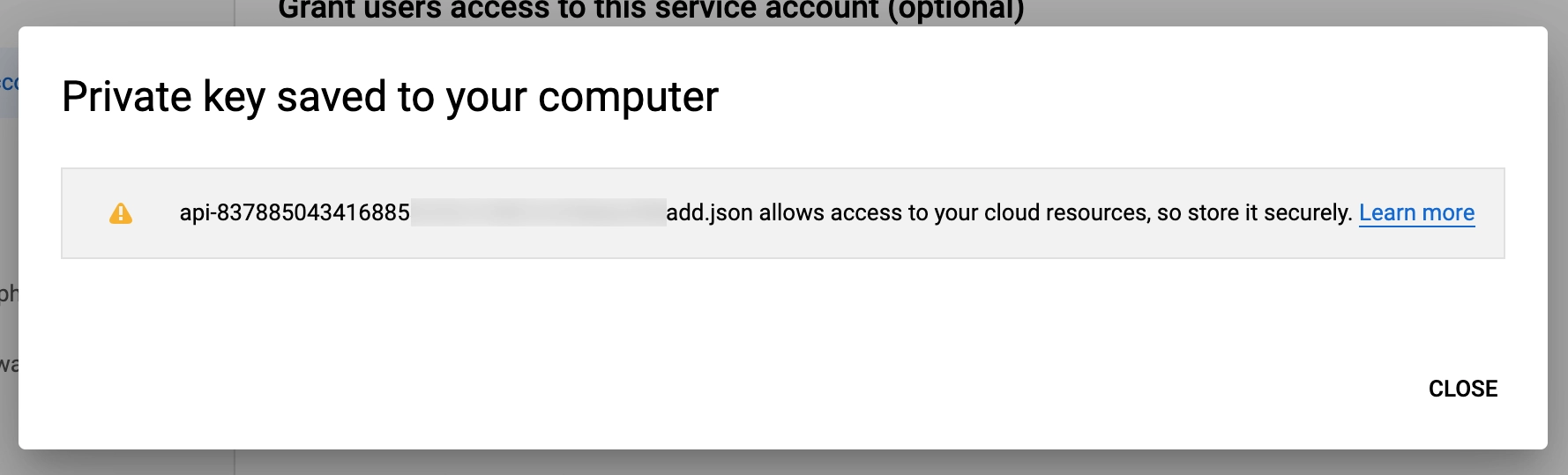
You should see a confirmation that the private key was saved and downloaded. Select Close.
Close the pop-up and select Done on the previous tab.
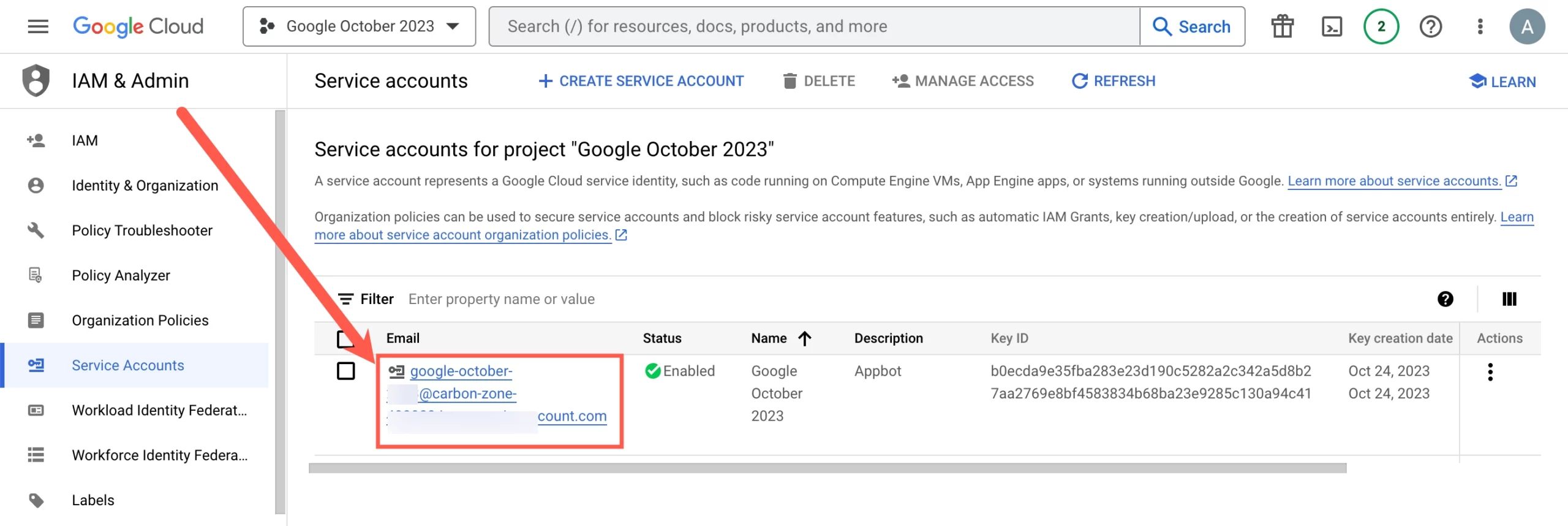
Back on the service accounts page, copy the service account user email address.
9. Grant app permissions
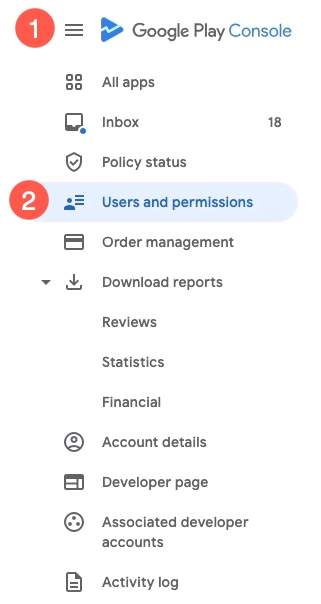
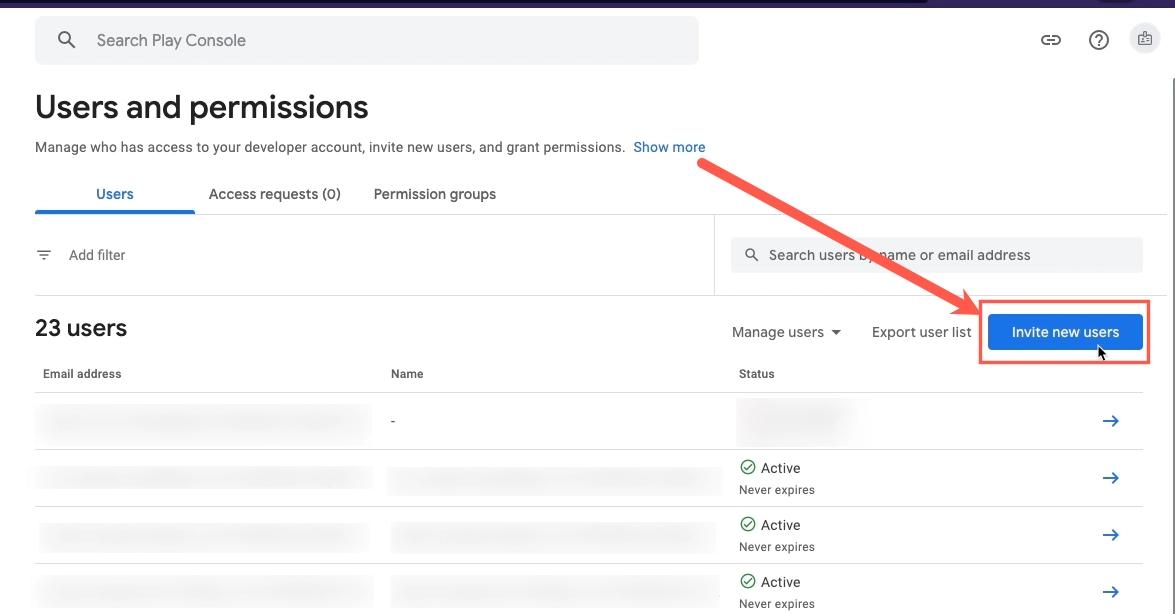
Back in Google Play Console, select Menu > User Permissions.
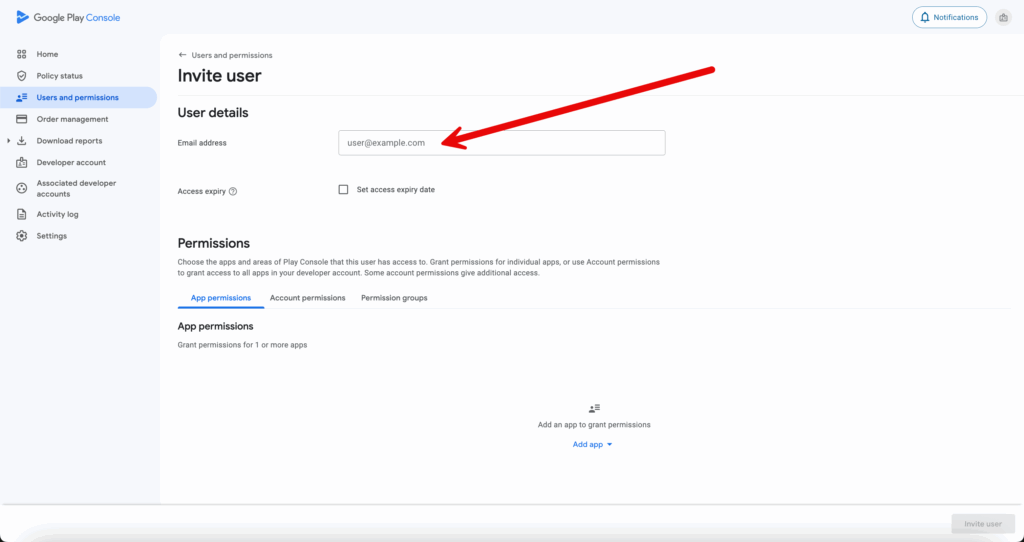
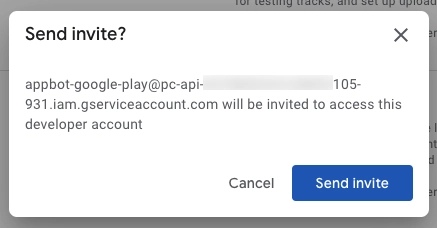
Select Invite New Users, then paste the service account email.
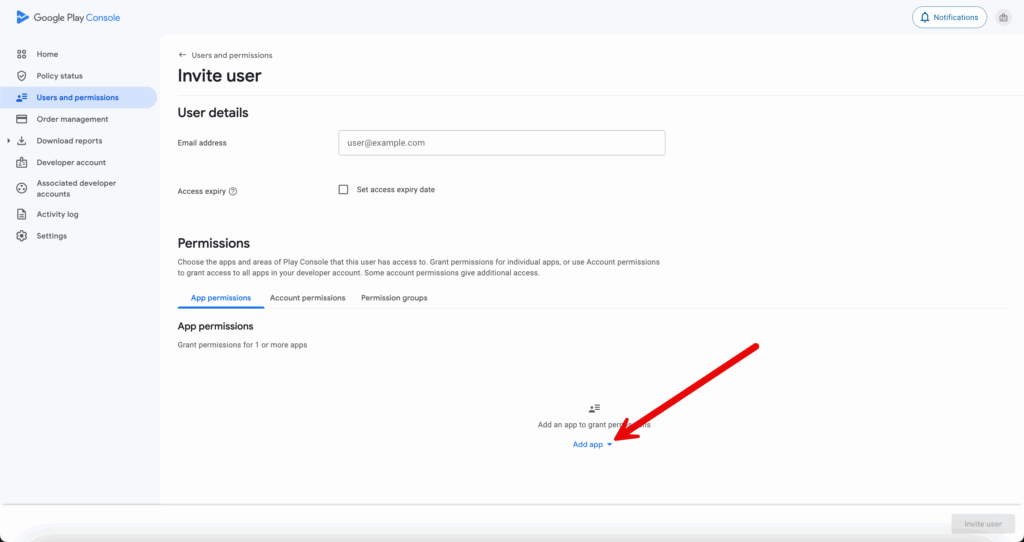
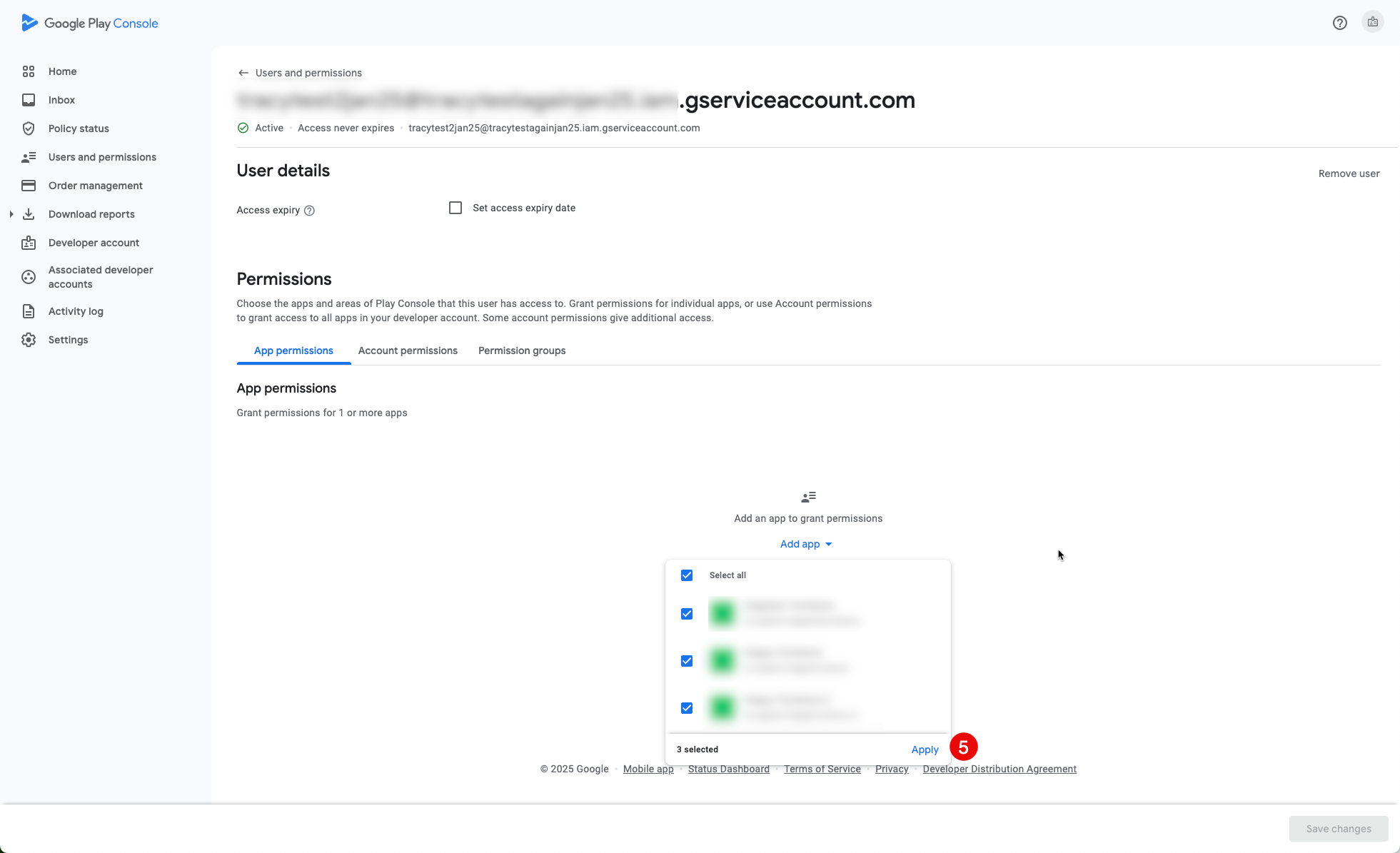
In App permissions, choose Add app, then select all apps or specific apps and select Apply.
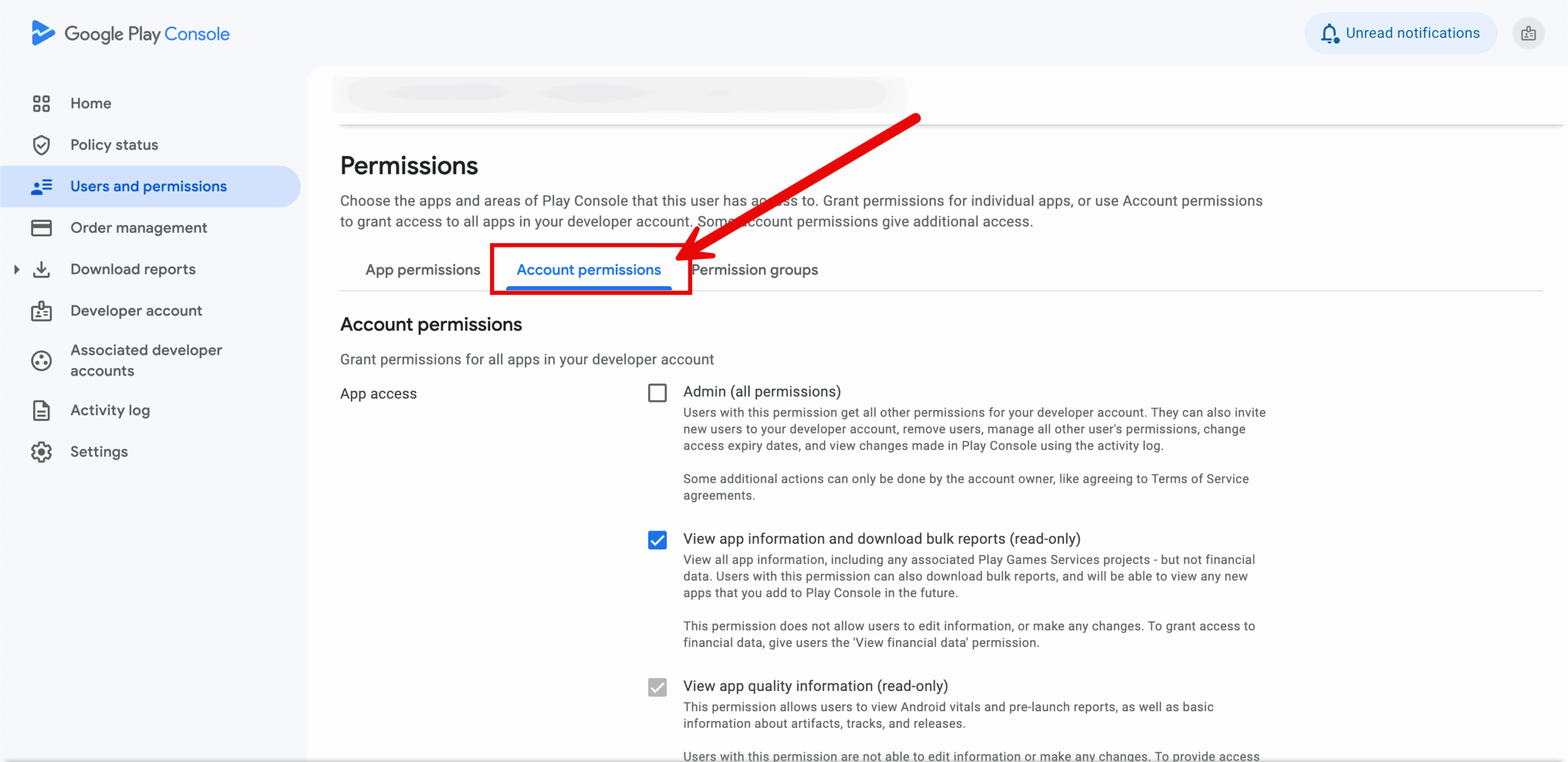
10. User access account permissions
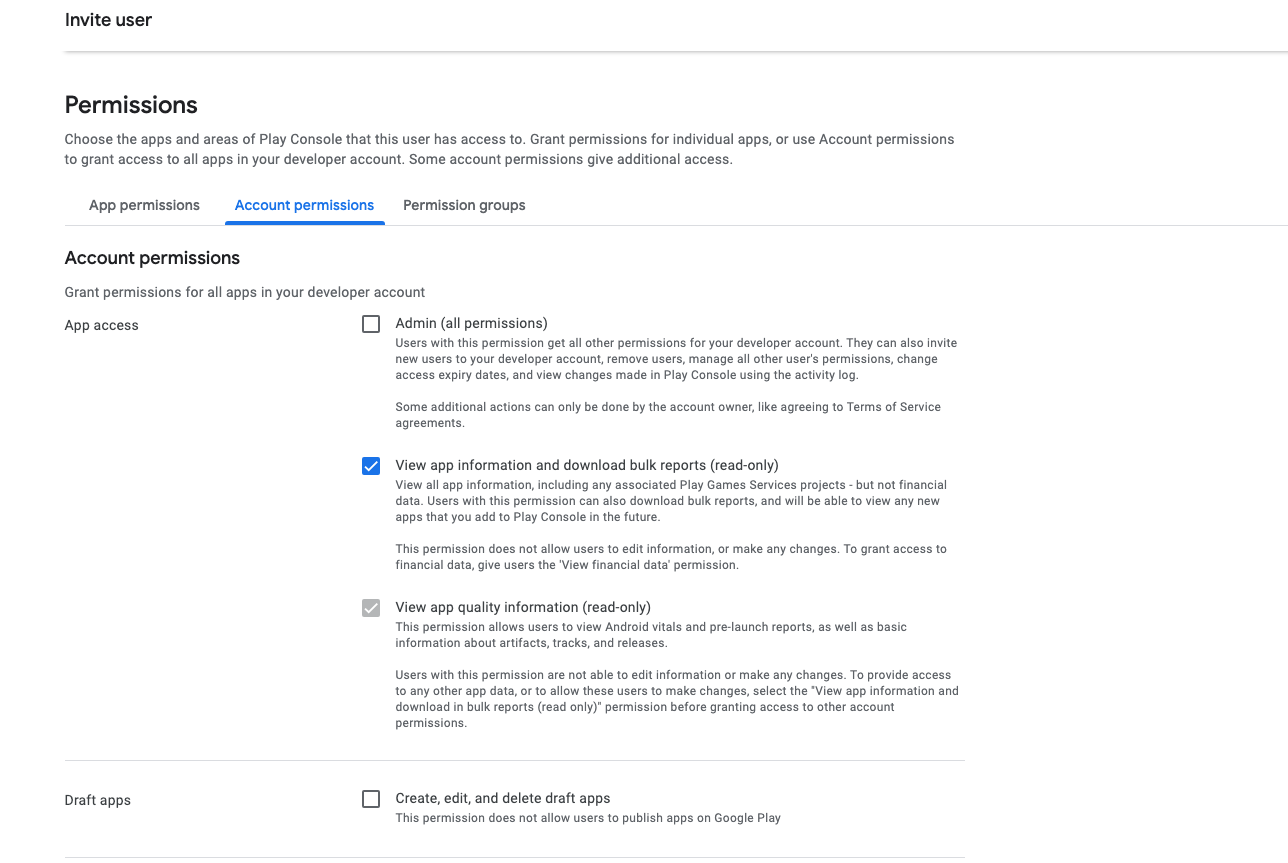
Under Account permissions, uncheck everything except the following:
- View app information and download bulk reports (read-only), which also selects View app quality information (read-only)
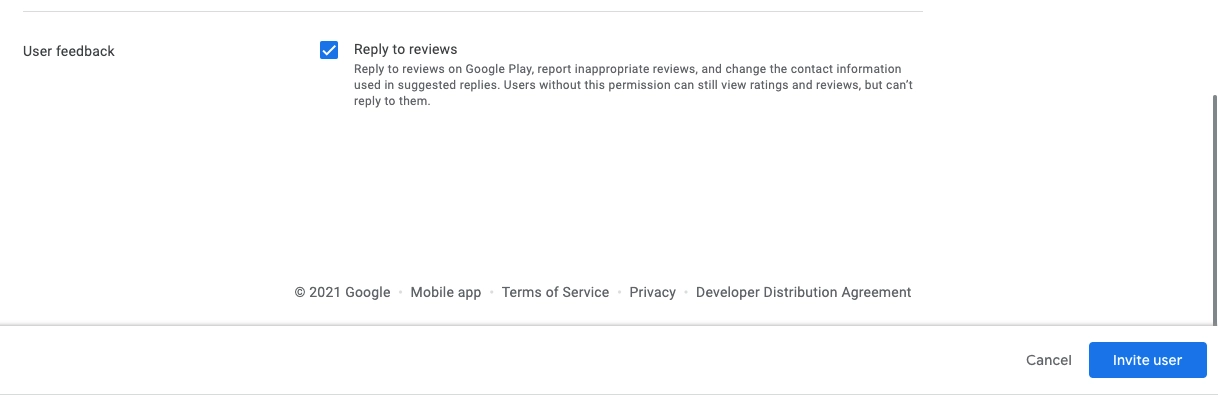
- Reply to reviews
11. Open ProdRail and enter credentials to link play store
In ProdRail, open the sources page from profile section, then click on Play Store.
Add your android app ID from step X
In Upload Credentials, Select Choose File, then pick the credentials JSON file downloaded in Step 8.
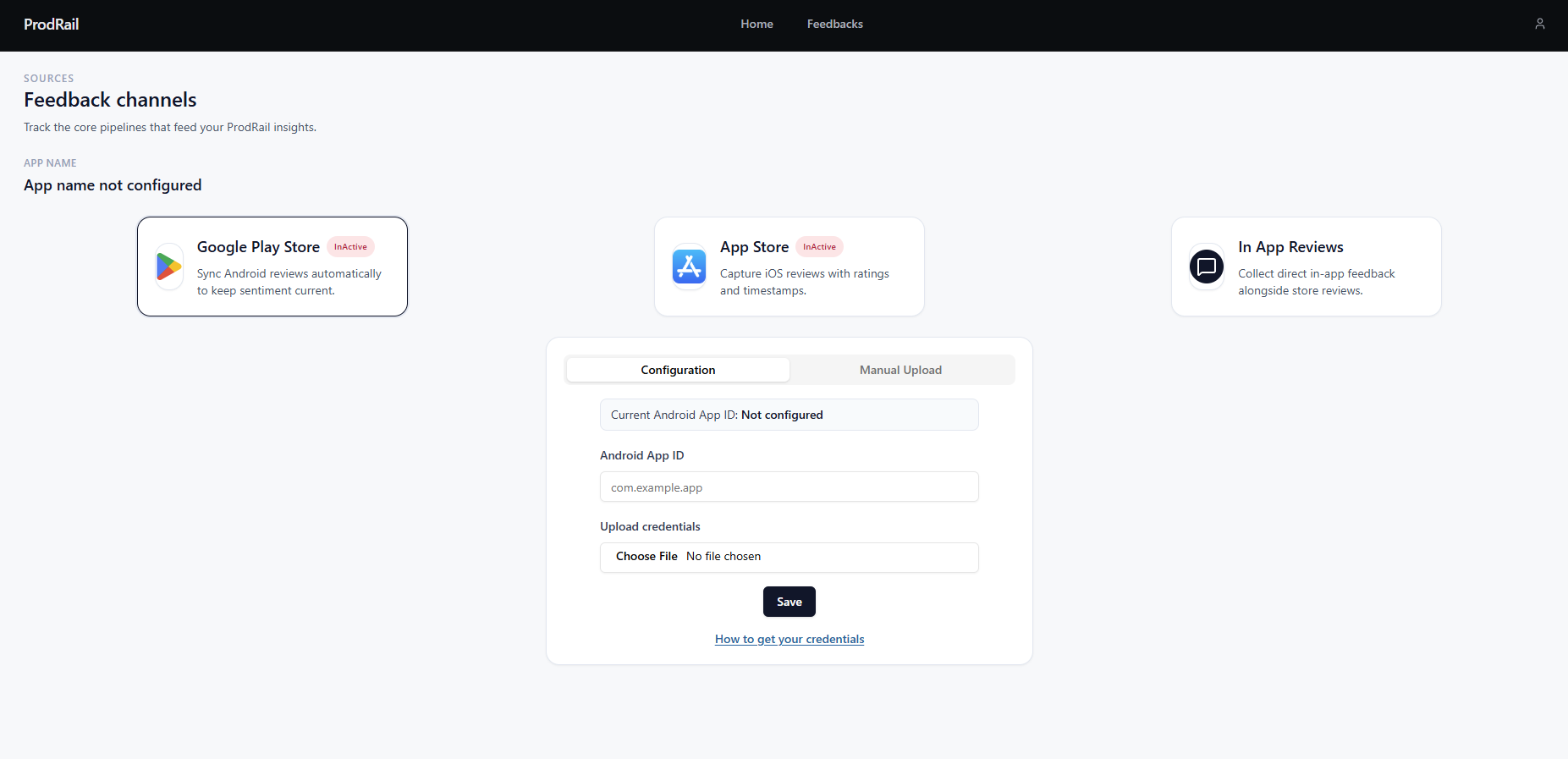
12. Save and verify linked store
After saving, ProdRail tries to connect to your Google Play account and verify the credentials are valid.
Once verified, your Play Store source will be linked and reviews will be fetched by ProdRail.
You stay in control after linking. If needed, revoke the service account in Google Play Console and rotate the key in Google Cloud at any time.
Google Play API returns only the latest 7 days of reviews. For older review history, you need to manually upload the reviews See how.
Who Can Access This Data?
The data collected under the authenticated Google Play app (the version with the green padlock) can only be accessed by users associated with teams that have a linked Google Play Developer Console account for that app connected to their team.