Manually Upload Play Store Reviews
Use this workflow to backfill historical Google Play reviews. This is required because Google Play API only returns the latest 7 days of reviews.
This guide has two parts:
- Download monthly review CSV files from Google Play Console.
- Upload each month's CSV in ProdRail Manual Upload.
Important: Repeat the monthly download and upload flow for every month you want to include beyond the latest 7 days.
Manual Backfill Steps
1. Open Google Play Console
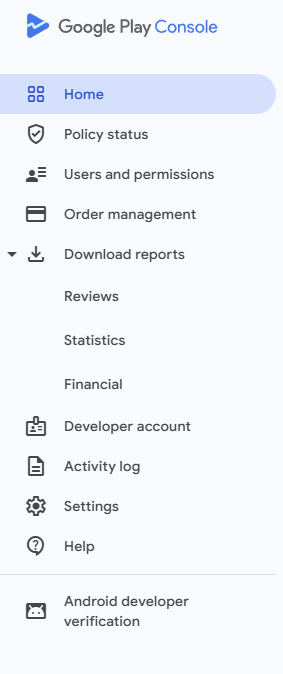
Login to Google Play Console and click on reviews under the Download reports section in the left navigation.
2. Confirm the correct app is selected
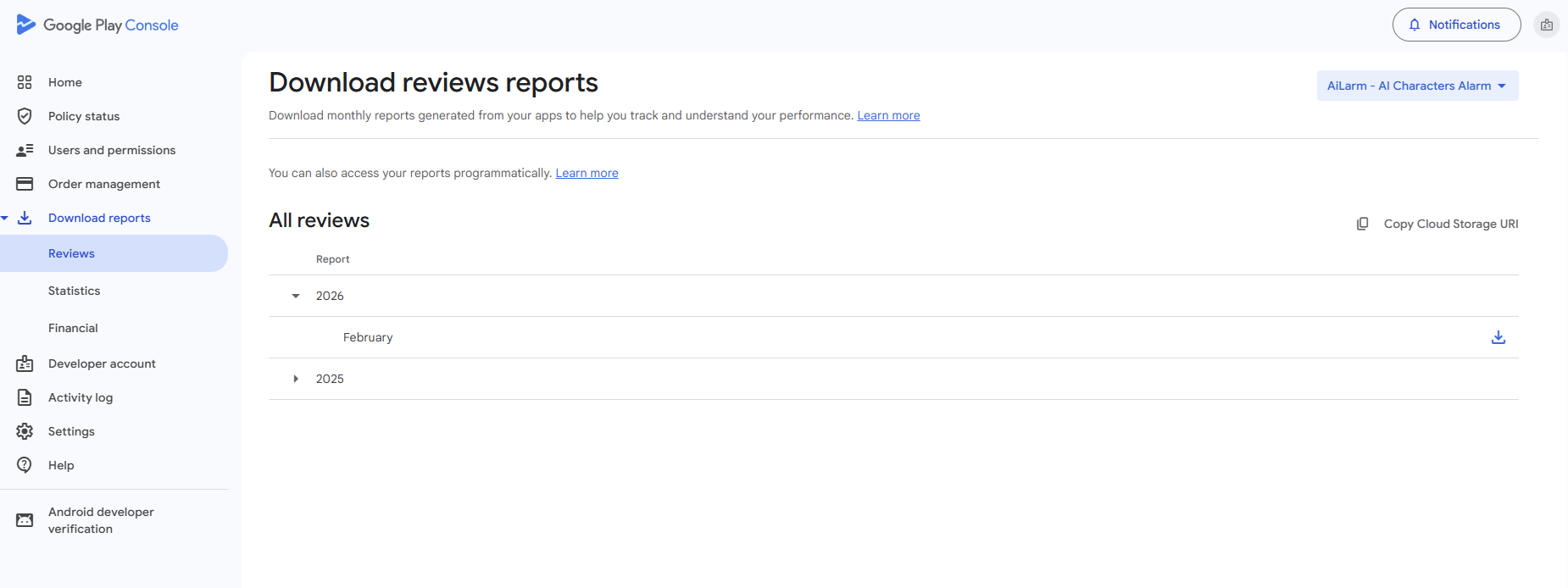
On the reviews reports page, check the app selector in the top-right and confirm it matches the app you are importing.
If you manage multiple apps, switch the selector before downloading files.
3. Download each month you need
Expand each year section, then click the download icon for each month you want to backfill.
- Start with the current year (for example: 2026 > February).
- Then open earlier years (for example: 2025) and download each month needed for backfill.
- Each downloaded file is one month of reviews.
4. Open ProdRail manual upload
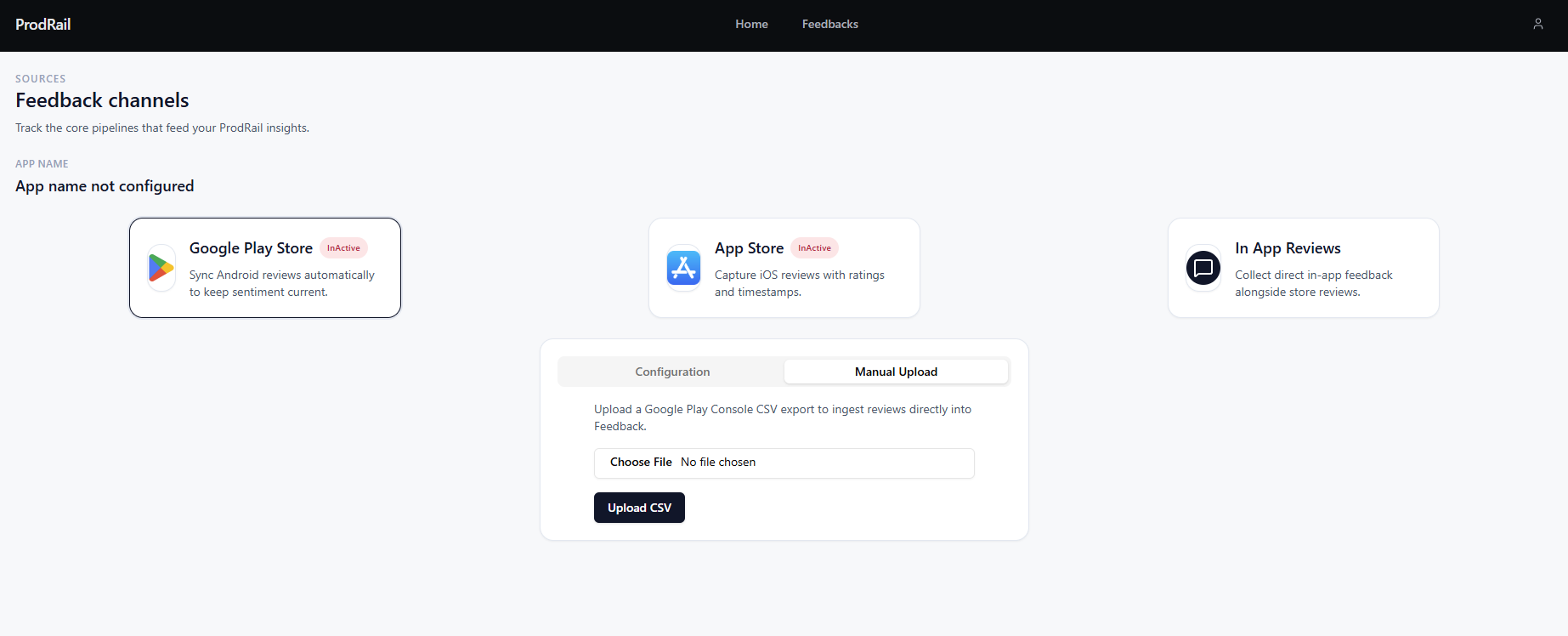
In ProdRail, go to Sources, open your Play Store source, then select the Manual Upload tab.
Choose one downloaded monthly CSV file and click Upload CSV.
Repeat the upload for each month file until the full date range is imported.
- Use files exported from Play Console Reviews reports. Any other CSV format will be rejected.
- Ensure that you upload the report for the correct app. Your app package name must match your configured Android App ID.
7. Verify upload summary after each file
After upload, confirm the summary counts in ProdRail: parsed, inserted, skipped existing, skipped duplicates, and skipped invalid rows.
Once all monthly CSVs are uploaded, your historical Play Store reviews will appear in Feedback for analysis.
Troubleshooting
- If a month is missing in Play Console, that month has no downloadable report yet.
- If upload fails with package mismatch, confirm you selected the correct app before downloading CSVs.
- If you need help with report availability, check Google Play Console account permissions.